
The Prime Minister of Pakistan has officially announced the PM Laptop Scheme, under which 100,000 students across Pakistan will receive free laptops. This scheme is part of the Prime Minister Youth Program and is designed to support deserving students enrolled in HEC-recognized universities. If you want to apply for PM Laptop Scheme 2026 and do not know where to start, this complete guide walks you through every single step of the online registration process — from opening the portal to final submission and status checking.
What You Need Before Starting the Application
Before you begin the online registration process for PM Laptop Scheme 2026, make sure you have the following things ready:
- A working internet connection
- Chrome browser installed on your mobile, computer, or laptop
- Your original CNIC or B-Form number
- Your university student card (for enrollment number)
- Your Matric and Intermediate certificates
- Your latest semester result or CGPA
- An active mobile number
- An active email address that you can access immediately
You can apply through any device — mobile phone, computer, or laptop. The process works on all devices. However, if you are applying through a mobile phone, it is strongly recommended to enable the Desktop Site option from your browser settings. To do this, tap the three dots on the top right corner of Chrome and select Desktop Site. This makes the portal interface identical to the computer version and is much easier to fill out correctly.
How to Open the PM Laptop Scheme Official Portal
Open Chrome on your device and type “PMYP Laptop” or “HEC PM Laptop Scheme” in the Google search bar. Press Enter and multiple results will appear. Look for the first link that shows “Prime Minister’s Laptop Scheme” with “Digital Youth Hub” written above it. Click on that link.
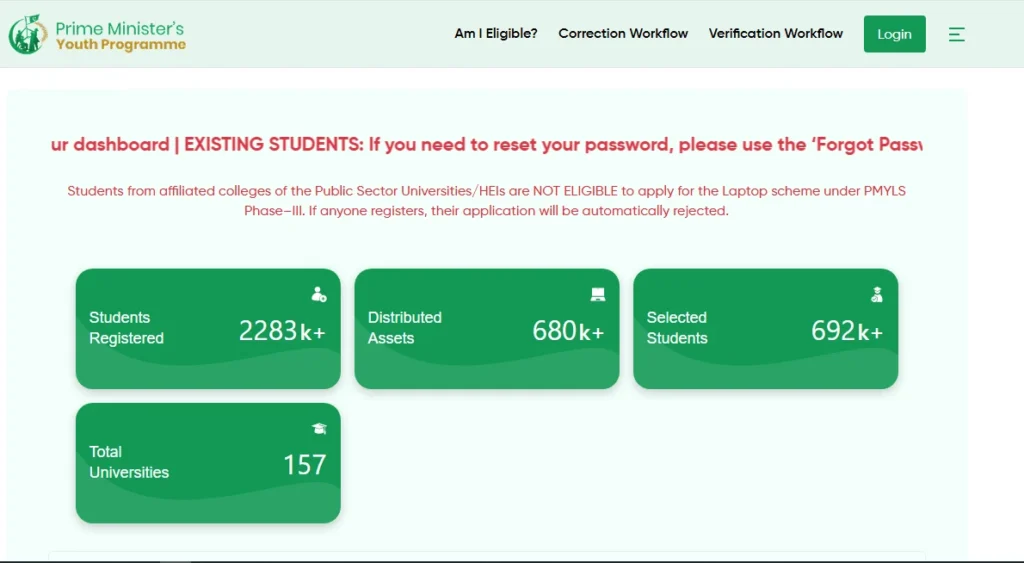
This will take you directly to the official Prime Minister Youth Program Laptop portal. You can also navigate to the portal through the HEC official website by clicking on the “How to Apply” tab at the top of the HEC page, where you will find the direct link to the registration portal.
Once you are on the official portal, you are ready to begin your application.
Check If You Already Have an Existing Registration
On the registration page, enter your CNIC or B-Form number. If a green or blue “Please Click Here” message appears, it means your account already exists from a previous registration.
Click the “Please Click Here” link to open the Existing Application Status page. Enter your university city, university name, CNIC number, and date of birth, then click “Filter” to view your existing application details and status.
If your application is still pending, you can update and resubmit it instead of creating a new account.
If you see the message “Valid” after entering your CNIC, it means this is your first-time registration and you can continue with a new application.
Starting the Fresh Registration Process
If this is your first time registering, complete the captcha verification by ticking “I am not a robot” and then click the Submit button.
An instruction page will open on your screen. This page explains that all fields marked with an asterisk (*) are mandatory and cannot be left empty. Read all the instructions carefully before proceeding. Once you have read them, click “Accept and Continue” to open the full application form.
The registration form is divided into three sections:
- Personal Information
- Academic Information
- Contact Information
All three sections must be completed in order. You cannot skip any section or submit the form with incomplete fields.
Section 1 – Personal Information
The first section of the application form is Personal Information. Your CNIC or B-Form number will already appear automatically in the first field.
Fill in the remaining fields as follows:
Full Name — Enter your complete name exactly as it is written on your Matric certificate or B-Form. Do not use nicknames or shortened versions. Spelling must be exact.
Father’s Name — Enter your father’s complete name exactly as written on his CNIC. Make sure the spelling is correct.
Date of Birth — Select your date of birth by choosing the correct day, month, and year from the dropdown menus.
Gender — Select your gender (Male or Female).
Permanent Address — Enter your permanent address exactly as it is written on your CNIC. This field is important for verification purposes so make sure it matches your official documents precisely.
Domicile Province — Select your domicile province from the list. Students from all provinces and regions of Pakistan can apply, including Punjab, Sindh, KPK, Balochistan, Azad Jammu & Kashmir, FATA, Gilgit Baltistan, and the Federal Capital. Select the province that appears on your domicile certificate.
Domicile City — After selecting your province, the cities will load automatically. Select your domicile city from the list.
Employment Status — Select whether you are Employed or Not Employed. This information does not affect your eligibility criteria for the laptop scheme in any way. Answer honestly regardless.
Disabled Student — If you are enrolled as a disabled student, select Yes. Otherwise select No.
Previous Laptop Recipient — This is a very important question. The system asks whether you have previously received a laptop under any government scheme. Answer this honestly. The government already has complete records of all previous beneficiaries. If you received a laptop under any previous phase of the PM Laptop Scheme or any other government laptop initiative, you must declare it. Students who already received a laptop under a previous scheme are not eligible to receive another one. Providing false information can result in permanent rejection and blacklisting.
After completing all fields in this section, click the green “Next Step” button to proceed.
Section 2 – Academic Information
The Academic Information section requires your university and degree details. This is the most important section of the form, so fill it out with extra care.
Enrollment Number — This is your university registration number, not your roll number or exam roll number. Your enrollment number is printed on your university student card. If you are unsure of your enrollment number, contact your university registrar before applying. Entering the wrong enrollment number is one of the most common mistakes students make and can lead to verification issues later.
City of University Main Campus — This field asks for the city of your university’s main campus, not necessarily the city where your campus is located. For example, if you are studying at the Gujranwala Campus of the University of the Punjab, you should still select Lahore because Lahore is the city of the main campus of Punjab University. Always enter the main campus city of your university, not your branch campus city.
University Name — After selecting the city, the list of participating universities in that city will load. Select your university name from the list.
Campus — Select your specific campus. Universities with multiple campuses will show all available options. For example, a university might have campuses in Bank Road, DG Khan, Faisalabad, or Multan. Select the campus where you are currently enrolled.
If your campus does not appear in the list, wait a few moments for the list to fully load and try again. If it still does not appear, do not proceed. Contact your university focal person for assistance.
Department or Subject — Select the department in which you are currently enrolled, such as Botany, Business Administration, Education, Computer Science, or any other field of study.
If your department does not appear in the list or the system shows “No Department Found,” do not proceed any further. This is a common issue that needs to be resolved through your focal person before you can submit your application. Contact your focal person immediately and report the issue.
Degree Level — Select your current degree level:
- 16 years education (Bachelor’s / BS)
- 18 years education (Master’s / MS / MPhil)
- PhD
Degree Program — Select your specific degree program from the available list.
Admission Month and Year — Select the month and year when you were admitted to your current degree program. Your expected completion date will appear automatically based on this information.
University System — Select whether your university follows the Annual system or the Semester system.
Current Semester — Select the semester you had completed up to 30 March 2025. Do not select a future semester. Enter only the semester that was already complete by the cutoff date.
Intermediate Percentage — Enter your FSc or Intermediate (12th class) percentage. To calculate your percentage, divide your obtained marks by the total marks and multiply by 100. For example, if you obtained 885 marks out of 1100, your percentage is 88.55%.
Grading System — Select whether your university uses a Percentage system or a CGPA system for evaluating your academic performance.
If you are a first-semester student who does not yet have a university CGPA, select the Percentage System because you have no university result to enter at this stage.
If you already have university results, you can select either Percentage System or CGPA System depending on what your university uses.
If you select CGPA, enter your latest CGPA in the provided field. For example, if your CGPA is 3.7, enter 3.7. The system will automatically convert it to a percentage for merit calculation purposes.
After completing all fields in the Academic Information section, click “Next Step” to proceed to the final section.
Section 3 – Contact Verification
The third and final section is Contact Verification. This step confirms that your contact details are active and reachable.
Mobile Number — Enter your active mobile number. Use a SIM card that is not converted or transferred from another network, as converted numbers sometimes fail to receive verification codes properly.
After entering your mobile number and clicking outside the field, a verification code field will appear. An OTP (One Time Password) will be sent to your mobile number. Enter this OTP in the provided field.
Email Address — Enter your active email address. Click the “Verify Email” button. An OTP will also be sent to your email address. Open your email inbox and enter the verification code in the provided field.
If the OTP does not arrive immediately, wait for 5 to 10 minutes and try again. Email OTP codes can sometimes take a significant amount of time to arrive due to server load, especially during peak registration periods. In some cases, the email OTP may take several hours to arrive. If this happens, remain patient and try again during off-peak hours or the next morning when server traffic is lower.
Once you enter the correct OTP codes for both mobile and email, the verification boxes will turn green, confirming successful verification.
After both verifications are complete:
- Complete the captcha verification
- Scroll down and read the disclaimer carefully
- Click the Submit button
A success message will appear on your screen confirming that you have successfully registered for the PM Laptop Scheme. Keep in mind that this registration is not a guarantee that you will receive a laptop. The final selection of students is based on merit, and laptops are distributed according to the final merit list prepared by HEC.
What Happens After You Submit Your Application
After successful submission, your application enters what is called the Correction Workflow. Understanding this process is essential because your application needs to pass through multiple stages before you can be selected for a laptop.
Stage 1 – Data Goes to PMYP and University Focal Person
After submission, your application data is sent to two places simultaneously — the Prime Minister Youth Program department and your university’s designated focal person. The focal person is a university official responsible for verifying student applications from that institution.
Stage 2 – Focal Person Review
Your focal person checks your eligibility, reviews all the information you provided, and verifies your academic details against university records. If there are any discrepancies — such as an incorrect enrollment number, wrong CGPA, or mismatched information — the focal person will identify them.
In some cases, the focal person may contact you directly to ask for proof or additional evidence to resolve a discrepancy.
Stage 3 – Verification or Rejection
If all your information is correct and you meet the eligibility criteria, the focal person will verify your application. Your application status will then change to Verified.
If you provided incorrect information, submitted false data, or it is found that you previously received a laptop under any government scheme, your application will be rejected. Your status will change to Disapproved.
If you believe your application was rejected by mistake and your information was actually correct, you have the option to contact HEC directly for review and appeal.
How to Find Your University Focal Person
If you need to contact your university focal person for any reason — such as a missing department, enrollment number issue, or verification problem — you can find their contact details directly on the official portal.
On the portal, look for the “Search Focal Person” option. Click on it and select:
- Your university city
- Your university name
Then click Filter. A complete list of focal persons assigned to different campuses of your university will appear, along with their contact information. Reach out to the relevant focal person for your campus and explain your issue.
How to Check Your PM Laptop Scheme Application Status
After submitting your application, you can check your current application status at any time through the official portal. Click on the menu icon (three bars) and select “Application Status” from the dropdown.
On the Application Status page, select the following details:
- University city
- University name
- Campus
- Department
- Degree level
- Year of study
Then click “Filter Result” to see your application status.
Your complete application details will appear including your name, father’s name, enrollment number, percentage, CGPA, and current status.
Here is what each status means:
Applied — Your application has been submitted successfully and is waiting for focal person review. This status appears in blue color.
Verified — Your focal person has reviewed and approved your application. You are now in the merit evaluation process.
Disapproved — Your application has been rejected either due to incorrect information, false data, eligibility issues, or previous laptop receipt.
Not Eligible — You do not meet the basic eligibility criteria for the current phase of the scheme.
Merit List — Your application has been selected and you appear on the final merit list for laptop distribution.
Check your status regularly on the portal to stay updated on any changes throughout the process.
Common Mistakes to Avoid During Application
Many students face issues during registration that could easily be avoided. Here are the most common mistakes and how to avoid them:
Wrong Enrollment Number — Always double-check your enrollment number from your student card before entering it. Do not confuse it with your exam roll number.
Wrong Main Campus City — Always select the city of your university’s main campus, not your branch campus city. This is a very common mistake that causes verification problems.
Incorrect CNIC or B-Form Number — Enter your CNIC or B-Form number exactly as it appears on your NADRA documents. Any variation will cause registration failure.
Declaring Previous Laptop Receipt — Always declare honestly whether you received a laptop under a previous scheme. The system has complete records and hiding this information will lead to permanent rejection.
Not Verifying Email — Make sure you verify your email OTP before clicking Submit. The Submit button will not become active until both mobile and email verification are complete.
Selecting Wrong Semester — Enter only the semester you had completed by the official cutoff date. Do not select a semester that you are currently studying or have not yet completed.
Department Not Found Error — If your department does not appear, do not guess or select a wrong department. Contact your focal person first and resolve the issue before submitting your application.
Frequently Asked Questions About PM Laptop Scheme Application
Can I apply using a mobile phone?
Yes. You can apply using any device including mobile phones, computers, or laptops. If applying through mobile, enable Desktop Site mode in Chrome for a better experience.
What if I forget to save my application midway?
The portal does not save partial applications automatically. Complete the entire form in one session to avoid losing your data.
Is there an application fee for pm laptop scheme?
No. The PM Laptop Scheme registration is completely free. Do not pay anyone claiming to process your application for a fee.
Can I edit my application after submission?
You cannot edit your application after submission on your own. If there is a mistake, your focal person handles the correction process during the verification stage.
What if my OTP does not arrive?
Wait at least 10 to 15 minutes before trying again. Email OTPs can sometimes take several hours to arrive. Try again during low traffic hours if the issue persists.
What if my application status stays on Applied for a long time?
This means your focal person has not yet reviewed your application. Contact your focal person directly using the contact details available on the portal through the Search Focal Person option.
Does employment status affect eligibility?
No. Whether you are employed or not employed does not affect your eligibility for the PM Laptop Scheme.
Final Tips for a Successful PM Laptop Scheme Application
Apply as early as possible once the registration portal opens. Do not wait until the last day as the portal experiences heavy traffic near the deadline and technical issues become more frequent.
Keep all your documents ready before starting the form so you do not have to pause midway to search for information. Double-check every field before clicking Next Step in each section. A single incorrect entry can create complications during the focal person verification stage.
After submission, regularly check your application status on the portal. Stay in touch with your university focal person throughout the process so any verification issues are resolved quickly.
The PM Laptop Scheme is a genuine and valuable opportunity provided by the government to support students with technology access. Follow the process carefully, provide accurate information, and give yourself the best possible chance of being selected on the final merit list.